
Is your Mac starting up like a crowded subway during rush hour? If those pesky apps are launching the moment you power up, it’s time to take control. Nobody wants to wait for what feels like an eternity just to get to their desktop while a parade of apps takes their sweet time loading.
Imagine a world where your Mac greets you with a clean slate every time you hit that power button. It’s not just a dream—it’s totally achievable. By stopping those unwanted apps from opening on startup, you’ll reclaim precious seconds and enjoy a smoother, faster experience. Let’s dive into how to kick those freeloading apps to the curb and make your Mac startup as breezy as a Sunday morning.
Understanding Startup Apps on Mac
Startup apps on Mac refer to the programs that automatically launch when the computer powers on. These apps can slow down the startup process and consume resources.
What Are Startup Apps?
Startup apps include all software that begins running at system startup. Examples range from web browsers to messaging applications. Each of these applications requires memory and processing power, affecting overall performance. Users might not always realize which apps are set to launch automatically. Some apps may be essential, while others are unnecessary distractions. Identifying these apps enables users to streamline their startup experience.
Why Managing Startup Apps Is Important
Managing startup apps plays a crucial role in optimizing Mac performance. Effective management leads to faster boot times and improved efficiency. Prioritizing essential applications ensures that only necessary programs run during startup. Users can experience fewer delays and a smoother performance. Disabling unwanted apps reduces system clutter and conserves resources. Thus, taking control of startup apps benefits overall user experience significantly.
How to Stop Apps Opening on Startup Mac
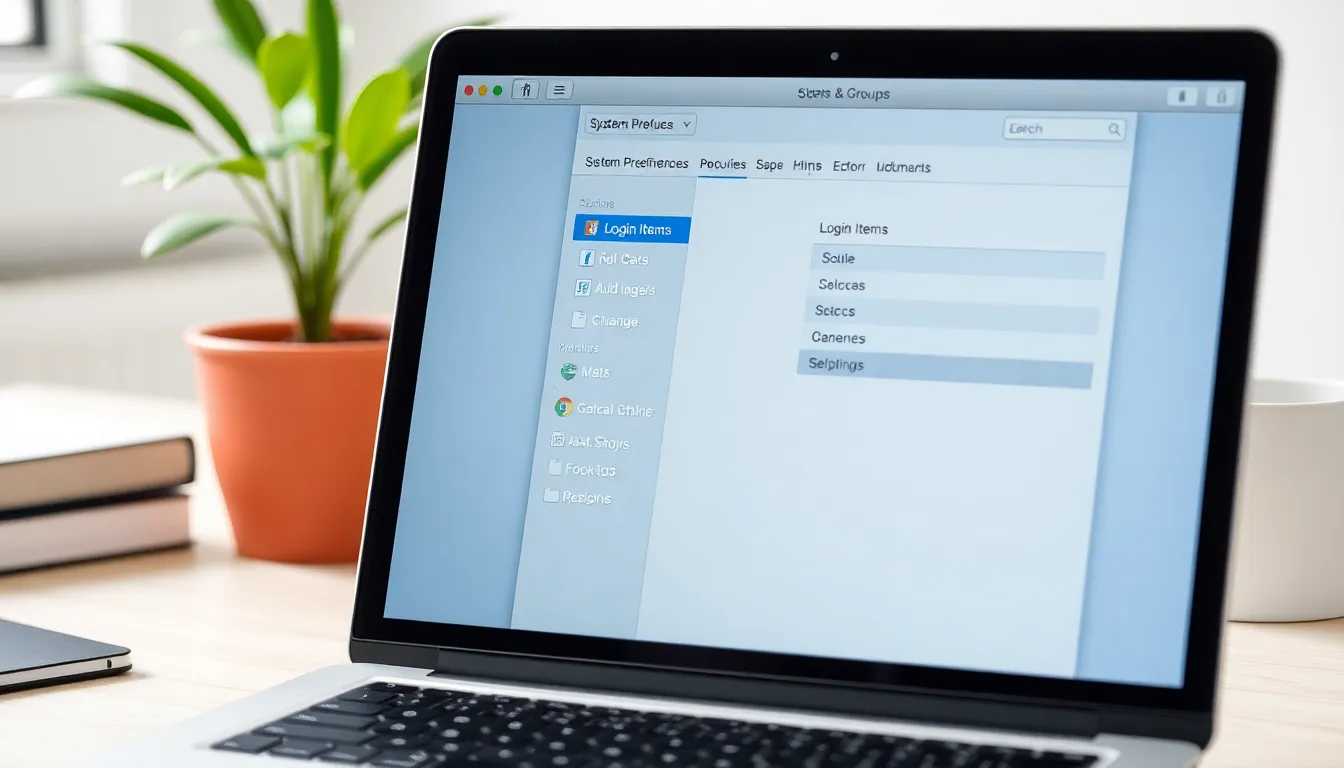
Managing startup applications enhances your Mac’s performance by allowing it to boot faster. Here are two effective methods.
Through System Preferences
Access System Preferences by clicking the Apple menu on the top left. Select “Users & Groups” from the available options. Choose your user account and then click the “Login Items” tab. A list of applications that launch at startup appears here. Identify which apps are unnecessary, select them, and click the minus (-) button to remove them. This straightforward approach quickly streamlines your startup process and helps improve startup times significantly.
Using the Dock
Right-click or control-click the app icon in the Dock to access its options. Select “Options” from the menu, then uncheck “Open at Login.” This action prevents the selected app from launching when the Mac starts. Implement this method for any app you find distracting or redundant during startup. Managing your Dock eliminates clutter and contributes to a quicker startup experience.
Alternative Methods to Manage Startup Items
Users can explore other approaches to effectively manage startup applications on their Mac. These methods offer additional control beyond traditional settings.
Third-Party Applications
Many third-party applications assist in managing startup items efficiently. Tools like CleanMyMac X and AppCleaner allow users to see all apps set to launch at startup. These applications offer intuitive interfaces for tracking and disabling unwanted startup programs. By consolidating item management into one tool, users can streamline the process, significantly improving startup times and overall performance.
Terminal Commands
Using Terminal commands provides a powerful way to manage startup items directly. Users can access the Terminal app and type specific commands to view and modify startup applications. For instance, entering ls ~/Library/LaunchAgents displays all user-specific launch items. Executing launchctl unload followed by the item path effectively disables unwanted applications. Command line tools grant users precise control, allowing customization tailored to their unique needs.
Troubleshooting Common Issues
Identifying problematic apps becomes essential for a smooth Mac experience. Users can monitor performance through the Activity Monitor app, which shows resource usage by each application. Unresponsive or sluggish apps often reveal themselves, leading to targeted action. They should look for apps that consume excessive CPU or memory. Upon identifying these applications, users can remove them from startup settings, promoting further optimization.
Resetting NVRAM or PRAM can resolve various system issues related to startup. Users must shut down the Mac and then power it back on, immediately pressing and holding the Option, Command, P, and R keys. Continuing to hold these keys for about 20 seconds often helps restore default settings. This process can address boot sequence glitches and incorrect display settings, contributing to a smoother startup experience. Users may notice improved performance after resetting NVRAM or PRAM, as it clears potentially problematic settings.
Taking control of startup apps can transform the Mac experience. By eliminating unnecessary applications from launching at startup users can enjoy faster boot times and improved system performance. Implementing the strategies outlined will lead to a cleaner and more efficient workspace.
Whether using System Preferences or third-party tools users have the power to customize their startup process. Regularly reviewing startup items ensures that only essential applications are running. This proactive approach not only enhances performance but also minimizes distractions.
Ultimately a streamlined startup process contributes to a more enjoyable and productive computing experience. With these tips in hand users can look forward to a quicker and more responsive Mac.